How to Create a Booking Link for Your Small Business
 By MatrisAI7 min read
Prepare your services and availability, create and test a booking link, then share it where customers can find it.

To create a booking link, choose what customers can book, set up the booking page in a tool that fits your business, and copy its shareable link. Test the complete booking journey before adding the link to your website or business profiles.
Use the steps below as a practical checklist for a salon or another appointment-based small business.
In this article (8)
- 1. Decide what customers should be able to book
- 2. Choose a booking tool that fits your business
- 3. Set up your booking page and availability
- 4. Create and copy your booking link
- 5. Test the link as a customer
- 6. Share the booking link where customers find you
- 7. Review the link and avoid common mistakes
- Booking link questions
1. Decide what customers should be able to book
Start with the appointment itself, not the link. Write down which services can be booked online, who provides each service, and how long each appointment takes. If customers need to choose a particular team member, make that part of the booking journey clear.
Next, prepare the information a customer needs to make a choice. This may include a service description, its price, appointment length, location, and any instructions to know before the visit. Keep the wording plain and specific. If two services have similar names, explain the difference.
- Define the appointment List the services customers can book, the people who provide them, and the details needed to choose the right option.

2. Choose a booking tool that fits your business
A calendar-based scheduling option can suit a business with a straightforward appointment process. A booking management system may be worth considering when you need to organize service choices, team availability, and booking details together. Compare tools against your actual process rather than choosing based on the name of a category.
Google Calendar and Microsoft Bookings are examples people may encounter when looking for scheduling options. The available search information does not establish a feature-by-feature or price comparison between them and other tools. Check each provider's current information and confirm that the option supports the way your team works.
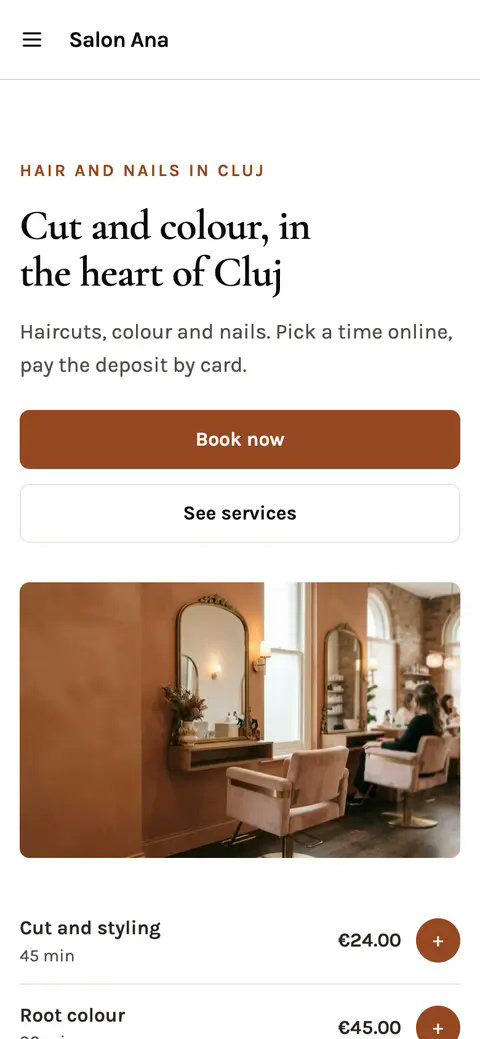
MatrisAI is an option for salons and appointment businesses. You describe the business in your own words, and MatrisAI builds the site from that description. Clients book online by choosing a service, the person they want, and a free time. Only times that are actually free in the team's schedule are offered, and every booking lands in the team's calendar in the admin. Clients receive an email confirmation and a reminder before the appointment.
You can ask for a deposit or full price by card when a client books, or take no payment online. Card payments go to the business's own Stripe account, which pays out to its bank. The site can also show a WhatsApp button for customers who want to message the business. See the MatrisAI appointments product page for details, and review MatrisAI pricing before making a choice.
- Choose a suitable tool Compare the booking steps and requirements you listed with the provider's current information, then select an option to test.
3. Set up your booking page and availability
Add the booking details you prepared, including service names and useful descriptions. Make sure a customer can tell which option to choose without needing to contact you first. If your services have different durations or prices, show those differences clearly wherever the tool allows.
Set the availability you are prepared to offer. Check that the times shown reflect the team's working hours, breaks, existing appointments, and any time needed to prepare between visits. Review the schedule whenever your hours or team arrangements change.
Before moving on, look at the page as a customer would. Check the order of the choices and whether the booking instructions make sense. Correct unclear service details or inaccurate availability before creating a link for public use.
- Set up the page Add accurate service information and availability that matches how your business operates.
4. Create and copy your booking link
Use the selected tool to create its booking page or appointment link. The exact controls vary by provider, so follow the current instructions for the tool you chose. Once the page is ready, copy the link and save a working version somewhere your team can find it.
Give the link a quick check before sharing it. Make sure it opens the booking page you intended, rather than a general calendar or an outdated page. If your tool offers different links for different services or team members, label each copied link so you can tell them apart later.
- Create and save the link Generate the booking page link in your chosen tool, copy it, and label it for the service or page it opens.
5. Test the link as a customer
Open the link and follow the whole booking journey. Check that the page loads, the service choices are understandable, and the displayed availability is right. Continue through the steps far enough to see what a customer is asked to provide and what happens after they submit a booking.
Where possible, test on a phone as well as a computer. Check that the link is easy to tap and that the booking details remain readable. If the tool lets you preview the page, use that preview as an extra check, not as a substitute for opening the actual link.
Do not publish the link until the destination and booking options are correct. If you find an issue, fix the page or schedule first, then repeat the test from the beginning.
- Test the full journey Open the copied link, review the choices and availability, and check the final booking steps on a phone and computer.
6. Share the booking link where customers find you
Once tested, add the link to places where customers already look for your business. Common options include your website, relevant social profiles such as Instagram or Facebook, and business listings such as Google Maps and Search. Check the rules and available fields on each platform before you post.
Use clear wording beside the link. For example, say “Book a haircut” or “Choose a salon appointment” rather than leaving a bare URL with no context. If you have separate links for different services, make sure each label leads to the matching page.
Keep a simple record of where you have shared the link. A short checklist can include your website, social profiles, and business listings. This makes it easier to update every location if the booking page changes.
- Share it clearly Add the tested link to relevant customer-facing pages and explain what customers can book there.

7. Review the link and avoid common mistakes
Check the booking link regularly, especially after changing services, team schedules, or the booking tool. Open the link from the places where you shared it to make sure it still reaches the right page. If you replace it, update each customer-facing location and remove old versions where you can.
Common mistakes include setting up a page before deciding what customers are booking, publishing unclear service descriptions, showing availability that does not match the team's schedule, and sharing a link without testing the full journey. Another easy-to-miss problem is updating the booking page but forgetting a link saved on a profile or an older website page.
Use this short checklist whenever you publish or update a booking link:
- The services and appointment details are clear.
- The availability matches the schedule you intend to offer.
- The copied link opens the correct booking page.
- The booking journey has been checked on a phone and computer.
- Every place where the link appears is recorded for future updates.
- Keep it current Recheck the destination and availability when your booking details change, and update every place where the link appears.
Booking link questions
What is a booking link?
A booking link takes a customer directly to a page where they can review appointment options and make a booking.
How do you make a link for booking?
Choose a booking tool, prepare your service details and availability, create the booking page, then copy and test its link.
How do you make a booking link on Google?
Google's options and steps can depend on the feature and account. Check Google's current instructions for creating an appointment page, then copy and test its shareable link.
Is there free booking software?
Availability and terms vary by provider, so check current pricing and trial details directly before choosing a tool.
Which is better for a small business: Calendly or Microsoft Bookings?
The right fit depends on your booking process. Compare each provider's current information against the services, schedule, and customer steps your business needs.
Your salon, online in a few minutes.
Tell us its name. We do the rest.
3 days free, then from €10 a month. Cancel any time.
Related articles
Email Marketing for Restaurants: A Practical Guide
Build a permission-based restaurant email list, plan useful campaigns, and choose tools around your actual workflow.
Restaurant Online Ordering Options Compared
Compare six options for restaurant ordering using costs, menu control, delivery setup and fit with your existing workflow.
Medical Scheduling Software: Compare Five Options
Compare medical scheduling software by workflow needs, verified product details, and what to test before choosing.